Scratchpads Logo

First Steps

  • Getting started
  • Logging in
  • Admin menu
  • Site setup
  • Theming
  • Pages

Adding and managing classifications

  • Adding a biological classification
  • Importing a classification
  • Viewing a classification
  • Editing classification
  • Itis standard fields
  • Importing classification from Excel
  • Deleting classification
  • Integrating external data
  • Filtering taxonomic terms

Creating & editing content

  • Locations and specimens
  • Media gallery
  • Images & media
  • Taxon descriptions
  • Literature
  • Blog
  • Forums
  • Newsletter
  • Publishing
  • Finding content
  • Recent content
  • Custom content
  • Phylogenetic tree
  • Edit content
  • Revisions
  • Ordering content

Import data

  • Import content
  • Import specimens
  • Import literature
  • Import taxon descriptions
  • Import locations
  • Import users

Export data

  • Exporting data
  • Create backup
  • Download a taxonomic dictionary
  • Exporting to geocat

Users & permissions

  • Adding & editing users
  • Permissions
  • User biographies
  • Groups

Blocks and views

  • Adding and editing views
  • View blocks
  • Enabling blocks

Webforms

  • Create webform
  • Administer webforms

Social

  • Managing comments
  • Google analytics
  • Share this

Advanced features & customisation

  • Citing Scratchpads
  • Customise front page
  • Customise dashboard
  • Customise menus
  • Customise shortcut menu
  • Custom content type on taxon page
  • Formatting thumbnails
  • Nomenclatural status
  • Enable pretty URLs
  • Sitemap

Support

  • Help and support

Glossary

  • Glossary
Scratchpads
  • Docs »
  • Media gallery
  • Edit on GitHub

Media gallery

Media Galleries are used to organise Images or other media types in groups. You may use media galleries to organise your media thematically according to the your needs.

  1. From the Admin menu go to Content > Media gallery

  2. Click + media gallery

  3. Enter a TITLE and a short description of the gallery in the BODY field
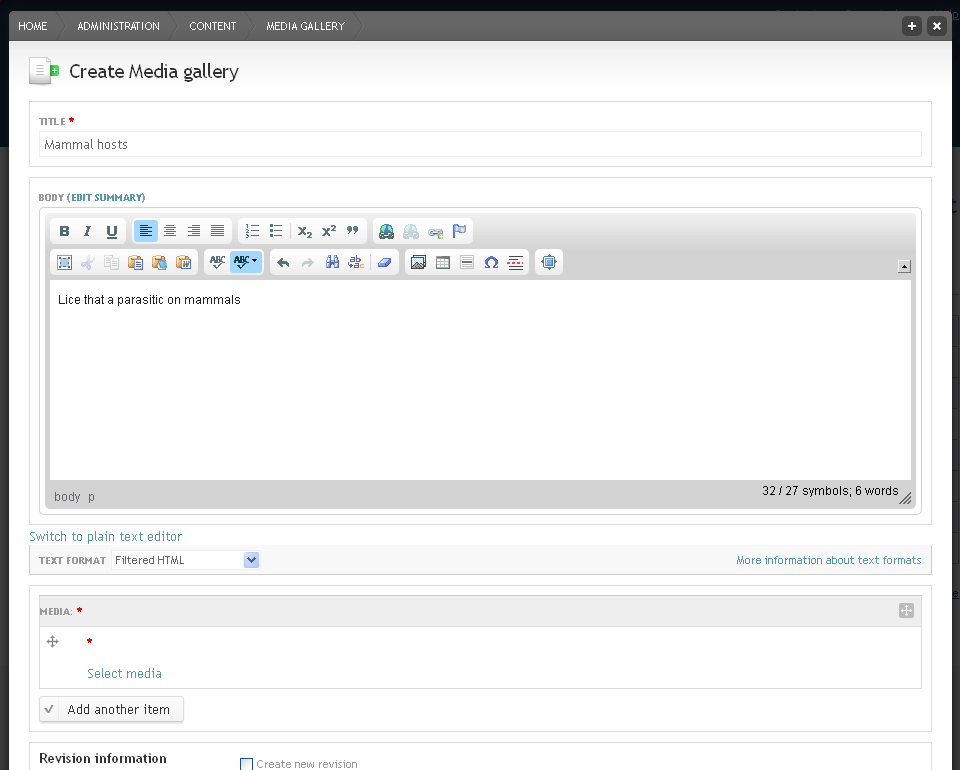
    ../_images/AddMediaGallery.jpg
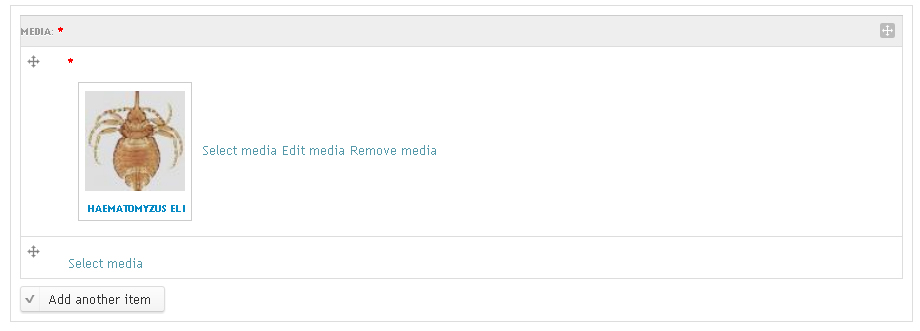
  4. In the Media box click on Select media and either upload a new image or, if you already uploaded images, click on the Library tab and select the image(s) you want to link to this media gallery

    Some example images are included in the course Training material.

    ../_images/SelectMedia.jpg
  5. Click Submit

    ../_images/SelectMedia2.jpg
  6. To change the creative commons license (the default licence is the one you chose during the set up workflow) or annotate your image in other ways (taxonomic name, imaging technique, keywords, etc.) click on Edit media next to the respective image.

    If you upload several images, it is faster to use the Grid editor to edit several images at once (see Edit content)

../_images/EditImage.jpg
  1. To add another image click the Add another item button and select another media file.
  2. Click Save
  3. After saving you will see your media gallery and images.
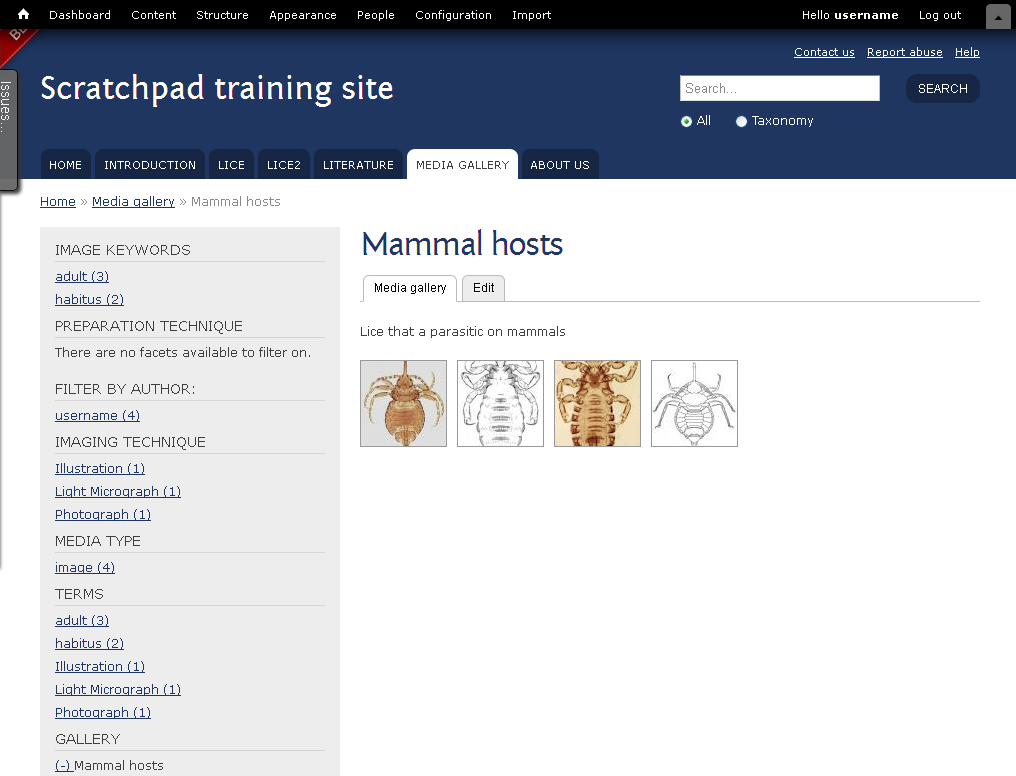
../_images/MediaGallery2.jpg

Troubleshooting

If the images are missing, refresh the page in your browser (Control+F5 on a PC) after a couple minutes.

Next Previous

© Copyright 2019, Ben Scott Revision 057c176f.

Built with Sphinx using a theme provided by Read the Docs.